Updated navigation in the DynaMaker Dashboard
We've updated the DynaMaker Dashboard navigation and editor layout, along with updated vocabulary throughout the dashboard. The Assemble & Publish (previously Application Overview) page, building blocks, and code editor now share the same workspace. Here's where to find the tools you use in your existing product configurators (previously called applications) and libraries.
Assemble & Publish and building blocks in one workspace
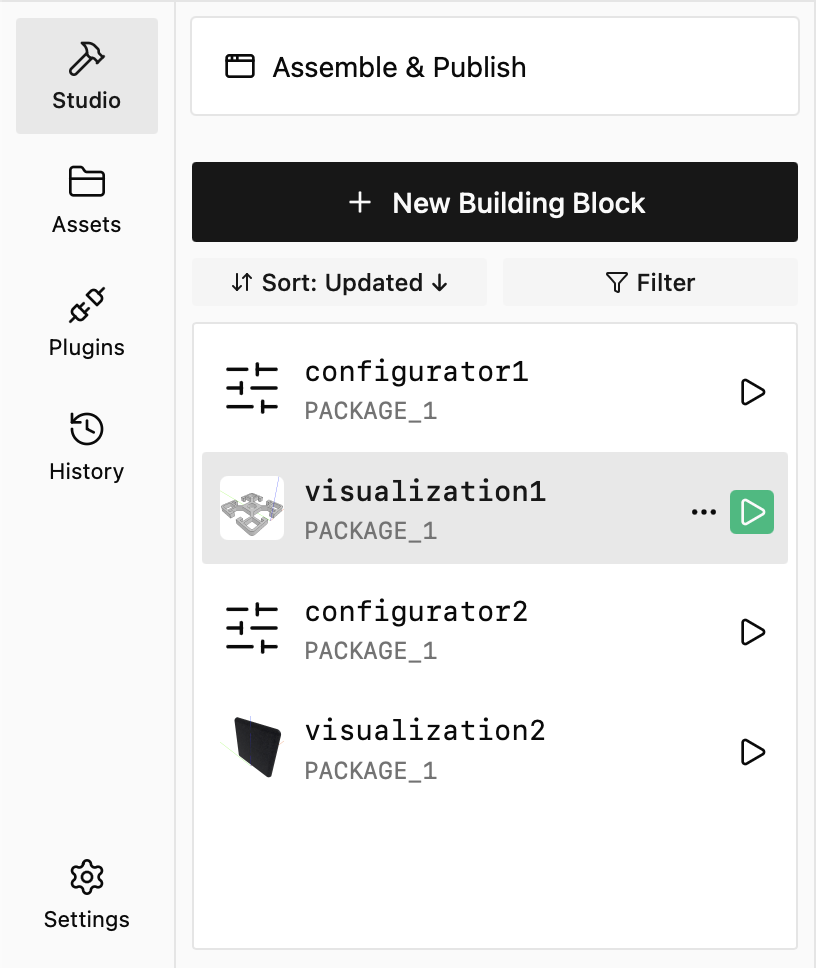
Open Studio in the left navigation to work with your product configurator. The Assemble & Publish button at the top of the building block list takes you to the page where you choose the product configurator's configuration model, visualization model, and download actions, preview the product configurator, and publish it.
Select a building block in the list to open its code. You can switch between building blocks and return to Assemble & Publish without leaving Studio. Assets, Plugins, and your product configurator's History and Settings are in the left navigation. Libraries use the same building block navigation, with Library Overview at the top.
Where to find familiar tools
The separate sidebar inside the code editor has been replaced by the shared building block list and controls above the editor.
| Tool | Where to find it |
|---|---|
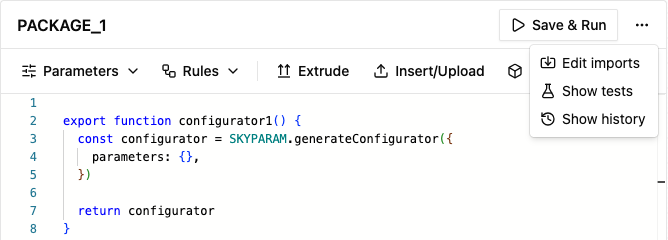
| Edit a package's imports | Open the ... menu beside Save & Run, then choose Edit imports. |
| View a package's version history | Open the same ... menu and choose Show history. |
| Show or hide a package's tests | Choose Show tests or Hide tests in that menu. |
| Create a building block | Click New Building Block above the building block list. |
| Import building blocks from a library | Choose New Building Block, then Import Building Blocks. |
| Building block and package actions | Open the ... menu on a row in the building block list. |
The History item in the left navigation shows product configurator history. Use Show history above the code editor for the selected package's versions.
Find building blocks in larger product configurators
Use Filter above the building block list to search for building blocks or filter by type. Active filters appear below the controls, where you can remove them individually or click Clear all.
Use Sort to order the list by name, package update time, package name, or building block type. Selecting the current sort option again reverses its direction. Packages with many exports can appear as a group that you expand to see their building blocks.
Selecting an exported building block also shows the package's internal building blocks beneath it. Select an internal building block to jump to its code.
Run building blocks and work with tests
Click the play button beside a runnable building block to run it in the preview. The preview heading shows what is running. Use Save & Run above the editor to save your package and run the preview again. If nothing is selected to run, the button says Save.
Tests for the open package appear in a Tests panel below the building block list. If the panel is hidden, open the editor's ... menu and choose Show tests. Click + beside Tests to add a test, select a test to edit its code, or use its play button to run it. Each test's ... menu contains its available actions, such as renaming, cloning, and deleting it.