Block mode
Building blocks now open in block mode, which shows a building block as a list of steps instead of code. The tools above the list add and edit steps, and block mode saves your changes automatically. Code mode is the code editor you already know, and a switch above the building block list moves between the two. We also split Studio into Publish and Build, and new product configurators now start with a configuration model and a visualization model.
Edit building blocks in block mode
Open Build in the left navigation and select a building block. Block mode lists what the building block does as steps, for example Add extrude or Dropdown parameter with text: material. The tools above the list add steps. A configuration model has Add dropdown, Parameters, and Rules. Visualization models and components have Extrude and Insert Geometry. A step you add runs in the preview right away.
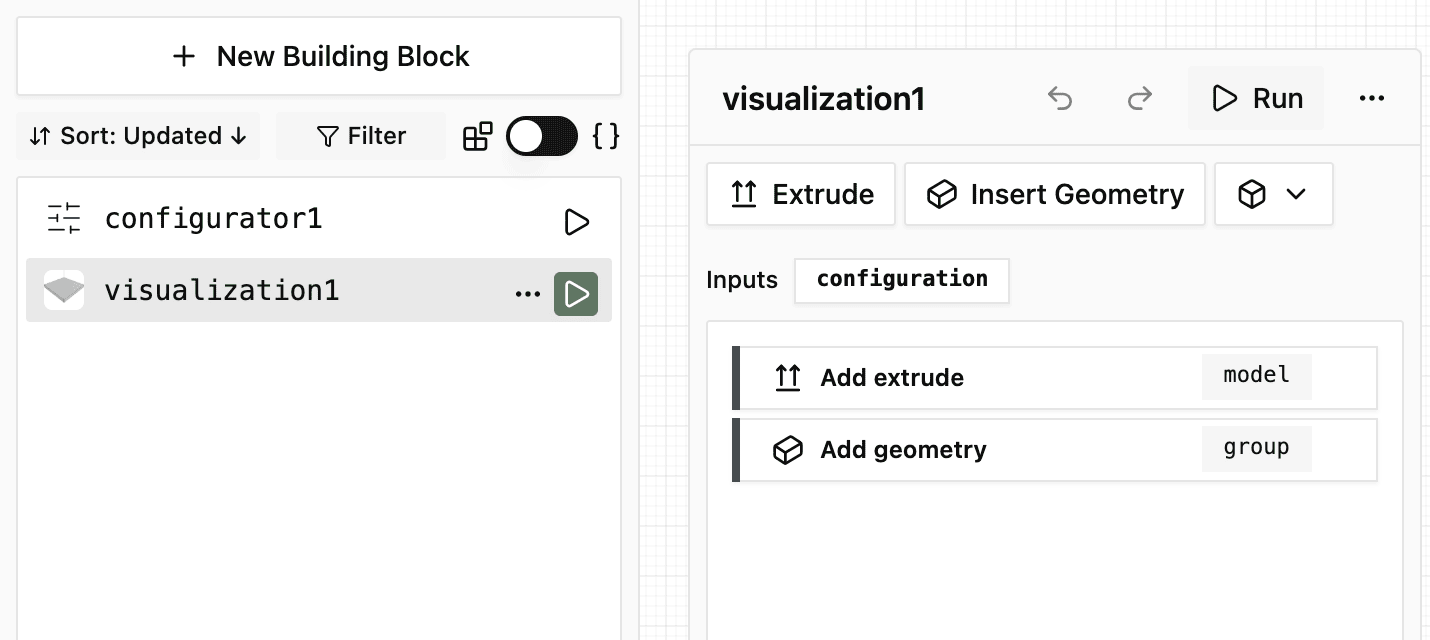
- Click a step to open the tool that added it, with its values filled in.
- Hover over a step to see the values it uses.
- Open the ... menu on a step to choose Edit, Show code, or Delete.
- Clicking a step that no tool can edit shows its code. Choose Edit code to open it in code mode.
- Use Undo and Redo in the editor's header to undo and redo your changes to the building block.
- Choose Show variables in the editor's ... menu to see the variables each step creates.
If block mode can't read a building block, for example because of a syntax error, it shows the line with the problem and a Show code button.
Switch to code mode
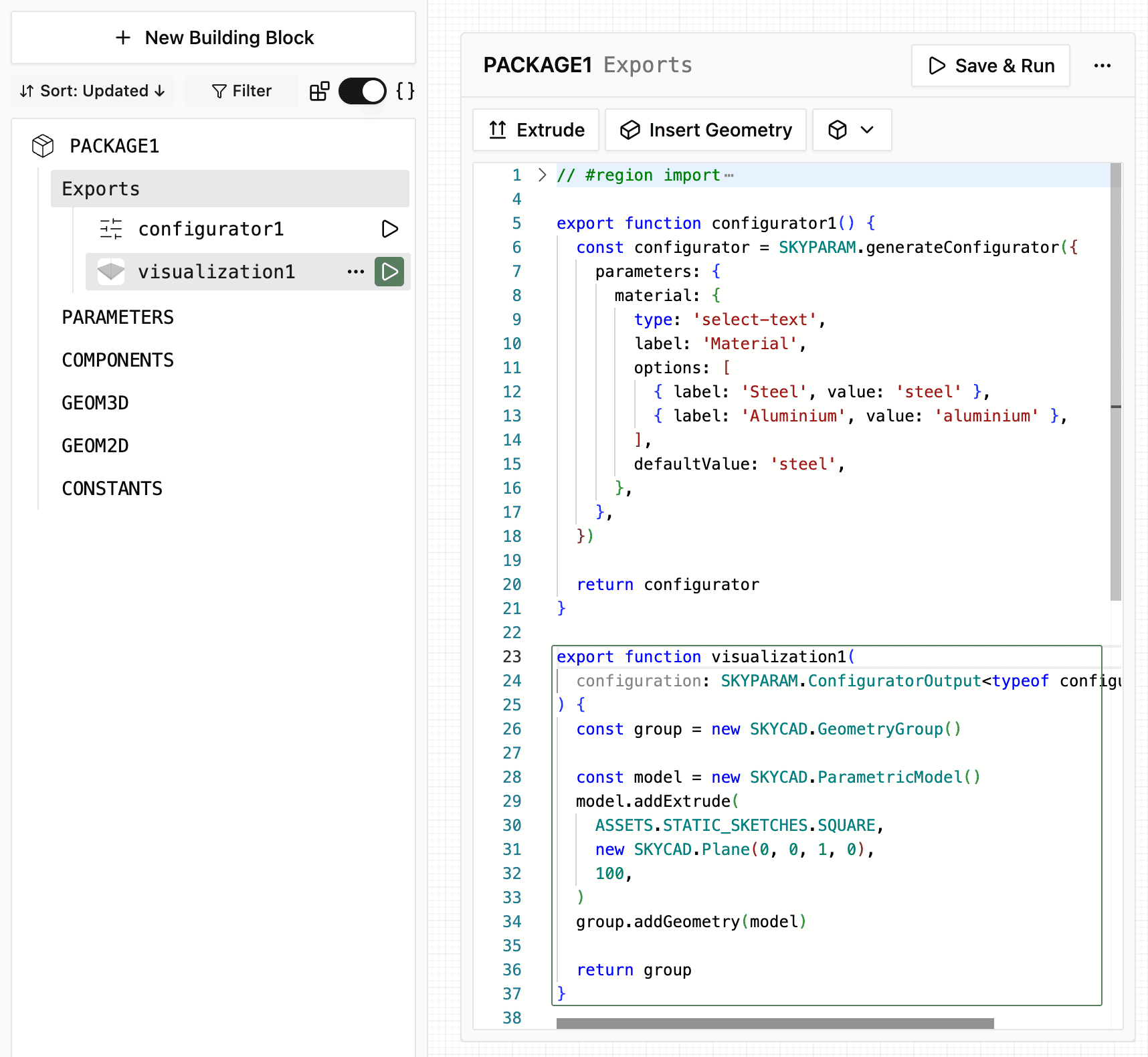
Use the switch beside Filter to move between block mode and code mode, or choose Show code or Show blocks in the editor's ... menu. The dashboard remembers the mode you last used in this browser.
Code mode shows the whole file. The building block list shows each package with its files, and you open a file from the list instead of from tabs above the editor. Save with Save & Run as before. If you leave code mode with unsaved changes, the dashboard asks whether to save or discard them. Filter searches the building blocks in every file and lists only the files that match.
Publish and Build replace Studio
Studio in the left navigation is now two items. Publish opens the page where you choose the configuration model, visualization model, and download actions, preview the product configurator, and publish it. This page was called Assemble & Publish. Build opens the building block list and the editor. Libraries have Overview and Build. The rest of the navigation is as described in the October navigation update.
New product configurators start with building blocks
A new product configurator now starts with the package PACKAGE1, which holds the configuration model configurator1
and the visualization model visualization1. Both are already selected on the Publish page. After you create the
product configurator, the dashboard opens configurator1, where you can click Add dropdown to add your first
parameter.