How To Create Block
In DynaMaker, your product is represented by building Blocks which in turn are stored in Packages.
1. Create Block
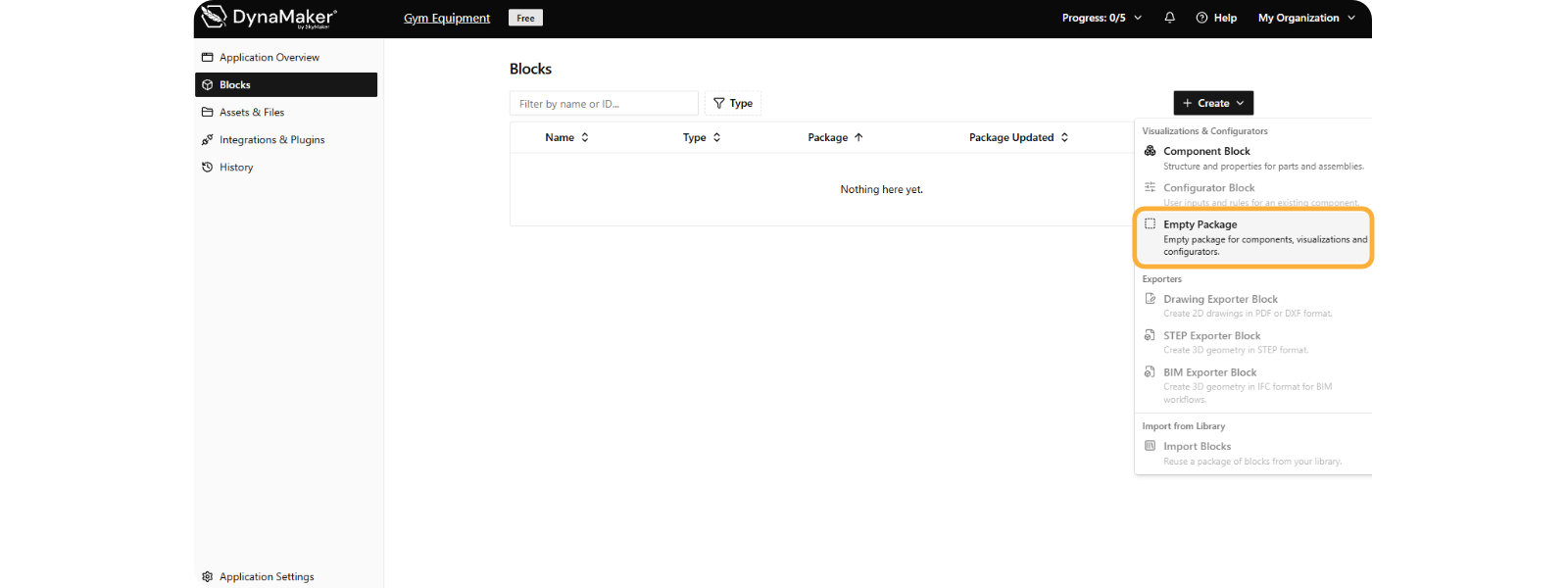
In order to create a block, in Blocks, go to the right menu + Create. We start with the simplest:
Empty Package:
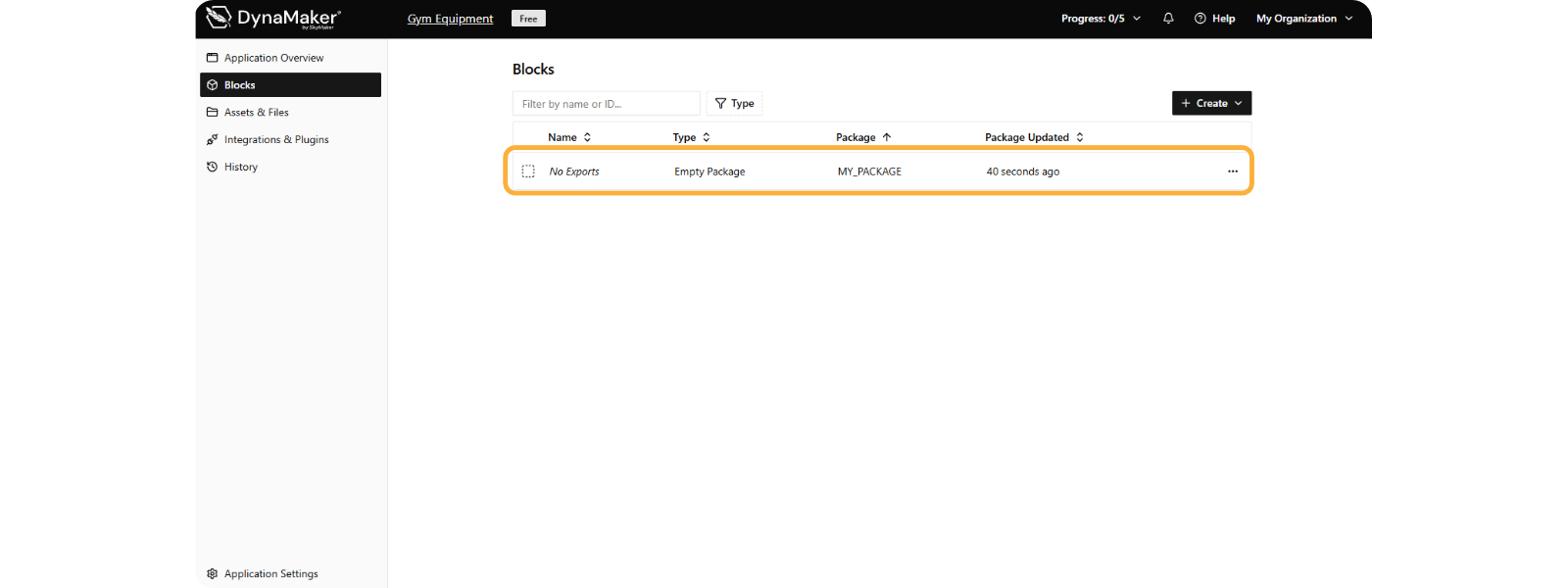
This block will show up in the list like this:
2. Block Overview
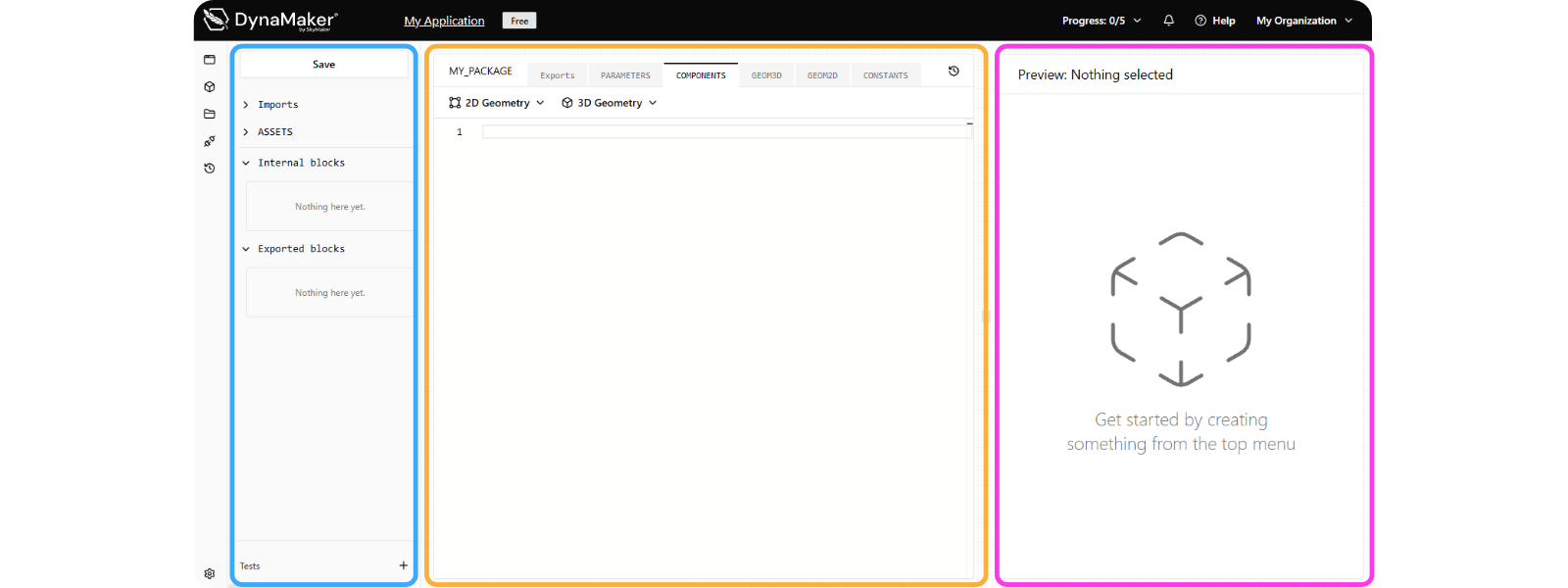
When you open this empty package, you will see the following:
-
Asset & Block Tree (left in blue), provides a clear overview of everything currently loaded into your specific block, with:
- Save to apply your changes of the Code Editor.
- Imports are used to call and include different packages when building more advanced projects.
- ASSETS lists all uploaded files and assets available within the current project.
- Internal / Exported Blocks shows the functions available inside the current editor (Internal) and the functions that can be accessed by other packages (Exported).
- Tests as the list of isolated configurations to test your functions from the Code Editor.
-
Code Editor (center in orange) where programming takes place, with the following tabs at the top to help organize your TypeScript development workflow:
- MY_PACKAGE represents the block currently being developed.
- Exports defines the data, files or other outputs that can be made available from your app.
- PARAMETERS defines the user inputs and configurable properties that your configurator accepts, such as checkboxes, sliders, and dropdown menus.
- COMPONENTS contains the functions used to create, add, and position 3D geometry dynamically.
- GEOM3D / GEOM2D are used to create 3D geometrical shapes or 2D sketches directly within DynaMaker.
- CONSTANTS stores fixed, unchangeable values that are referenced multiple times throughout your code.
- Quick Tools (2D Geometry / 3D Geometry dropdowns) provide ready-made snippets and quick access to standard DynaMaker functions to accelerate development.
-
Live Preview Canvas (right in pink), provides real-time visual feedback. As soon as valid code is written, the 3D canvas automatically updates and renders your geometry dynamically.
With this basic knowledged about how to get started, you can know dive into the first tutorial.