How To Create Blocks
In DynaMaker, products are built from Blocks, which are stored in Packages.
Configurator Block
A configurator block allows you to create a configurator with a set of parameters intended to be connected later with a visualization.
- Create a Configurator block in Blocks > + Create > Configurator Block.
See that a package is created automatically along with the configurator block, you can learn more about its overview here.
- Then at the top, Parameters allows you to add parameters to said configurator:
- Number as slider or input number field for a measurement.
- Text as a input string field.
- Checkbox as a boolean field or toggle.
- Text dropdown as a dropdown with multiple text choices.
- Number dropdown as a dropdown with multiple number choices.
- Color as a palette with multiple color choices.
Explore each additional option for each parameter since it allows you to add certain minor rules like setting the min- and max-values of your number-parameter, the max-number of rows of your text-parameter, tooltips, and more.
Visualization Block
A visualization block allows you to create a 2D/3D visualization by reusing your 2D/3D files or building within the editor. It can be connected to a Configurator block if this is created first.
- Create a Configurator block in Blocks > + Create > Visualization Block.
See that a package is created automatically along with the visualization block, you can learn more about its overview here
- Then as for the relevant quick tools:
- Extrude allows creating the usual CAD extrusion with a 2D (.dxf) file.
- Insert/Upload allows reusing your 3D files.
You can stack multiple geometries as you want by adjusting their placement either through the initial popups or later with code.
From Configurator Block
In order to make your visualization dynamic with a configurator, you can connect it directly when creating the visualization block. Here's an example from the tutorial Gym Equipment that has already a configurator block:
Then the desired geometry to be added can be easily connected to the parameters of your configurator block:
Package
1. What is a Package?
A Package can contain your configuration and visualization-blocks. In order to create a block, a package is required. If none exist, a new package is created automatically along with the block.
2. Package can contain multiple Blocks
Naturally multiple blocks can be added to the same package by doing the same process when creating it and choosing the same package:
-
for the case of configuration blocks:
-
for the case of visualization blocks:
Switch between blocks by clicking on ▶︎ of the desired block. Check the guide how to preview blocks.
3. Create Empty Package
Although a package is created autoamtically when creating a block, an empty package can be created first. Then when creating a block this package can be selected.
4. Package Overview
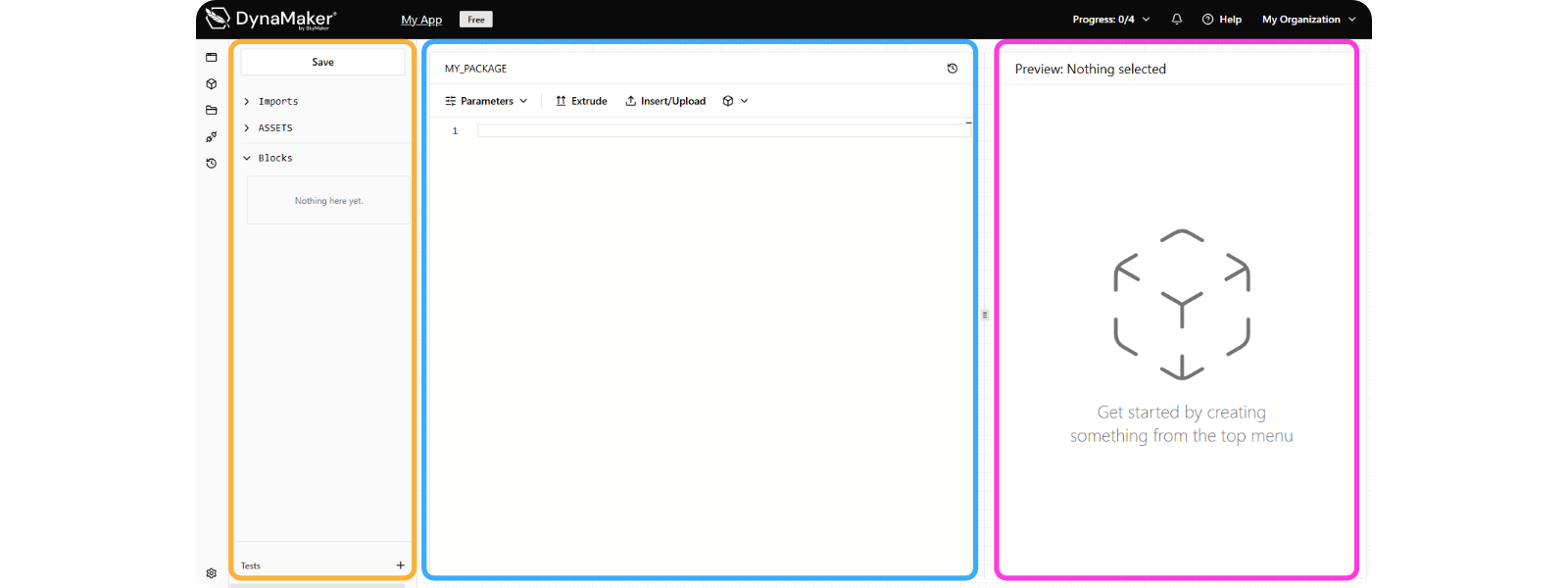
When creating a package or a block with a package you will find the following:
-
Asset & Block Tree (left in orange), provides a clear overview of everything currently loaded into your specific package, with:
- Save to apply your changes of the Code Editor.
- Imports include other imported packages when building more advanced projects.
- ASSETS lists all uploaded files and assets available within the current app.
- Blocks shows the configurator-, visualization- and component-blocks existing in the current package.
- Tests as the list of isolated configurations to test your functions from the Code Editor.
-
Code Editor (center in blue) where programming takes place, with:
- MY_PACKAGE represents the package currently being developed.
- Quick Tools (Parameters, Extrude, etc dropdowns) provide no-code snippets for a faster development.
- Editor as the code-area below the Quick Tools to generate the relevant preview.
-
Preview (right in pink), provides real-time visual feedback. The valid code from the Editor will render the correspoding visualization like the parameters of your configurator blocks or the 2D/3D geometry of your visualization blocks.